
Connect in 3 steps
The PingNitro client runs on your computer as a local proxy at 127.0.0.1, port 1081. Your terminal only needs to be pointed at that proxy — API keys, orders and exchange settings stay unchanged.
- Get access and the app. In the bot @pingnitrobot or in your account press "Connect for free". For Windows — the installer PingNitro-Setup.exe; for macOS — a command in Terminal or a DMG file, step by step on the PingNitro for Mac page. There is no key to enter: in the app window click "Sign in with Telegram" and the app gets your key itself.
- Install. Windows: run
PingNitro-Setup.exe→ "Install" (no administrator rights needed; shortcuts in the Start menu and on the desktop, autostart, uninstall via "Apps"). In the app window click "Sign in with Telegram" and confirm the sign-in in the bot. A PingNitro icon appears near the clock: a green dot means the route works, a red one means it doesn't; right-click opens the menu (check, instructions, autostart, quit). macOS (M1–M4):- Open Terminal (⌘ Space → "Terminal"), paste the command
curl -fsSL https://pingnitro.com/mac.sh | bashand press Enter. The app downloads, verifies its own integrity, installs into Applications and opens; no Mac password needed. - In the PingNitro window click "Sign in with Telegram" → in the bot press "Start". From then on PingNitro runs in the background and starts by itself when you log in.
- Instead of the command you can install from a DMG file — step by step, including the "Open Anyway" step, on the PingNitro for Mac page.
If Windows shows "Windows protected your PC" — click "More info" → "Run anyway" (it contains the official open-source shadowsocks-rust client). - Open Terminal (⌘ Space → "Terminal"), paste the command
- Set the proxy in your terminal — choose yours below. It is the same everywhere: type HTTP, address 127.0.0.1, port 1081, login and password empty.
Your terminal
Menu and field names below are translated from the terminals' Russian-language interfaces; in an English-language build the wording may differ slightly. If you can't find an item, contact support.
CScalp
- Open the CScalp settings → the "Connections" tab → the "My proxies" button.
- "Add proxy": IP address
127.0.0.1, port1081, leave login and password empty. Save. - In the connection row of the exchange you need (Binance, OKX, Bitget, Gate…), choose the proxy you added from the drop-down list.
- Reconnect to the exchange. Done — compare the feed before and after (for example with the test on our site).
Tiger.com (Tiger.Trade)
127.0.0.1:1081.- Main menu "File" → "Connections" → "Configure".
- Open the exchange connection (or create a new one) → the proxy manager → add a proxy: name —
PingNitro, "Proxy settings" —127.0.0.1:1081, login and password empty. - In the connection, in the "Proxy" column, select
PingNitro. - For Binance turn on all three checkboxes: "Use proxy for market data" (feed and order book — the main gain), "…for user data" and "…for orders". For OKX — both checkboxes.
- Reconnect.
Vataga.terminal (EasyScalp)
- The gear icon in the program header → the "Proxy" tab → "Add proxy".
- Host (the "Address" field) —
127.0.0.1, Port —1081, login and password empty. Save. - The "Connections" tab → choose the exchange connection → in its "Proxy" field choose the proxy you created.
- "Proxy mode" — "Full stream" (both the feed with the order book and your orders go through the route; in the "Orders only" mode the feed stays slow).
- Click the connection in the header — the green "Connected" indicator lights up.
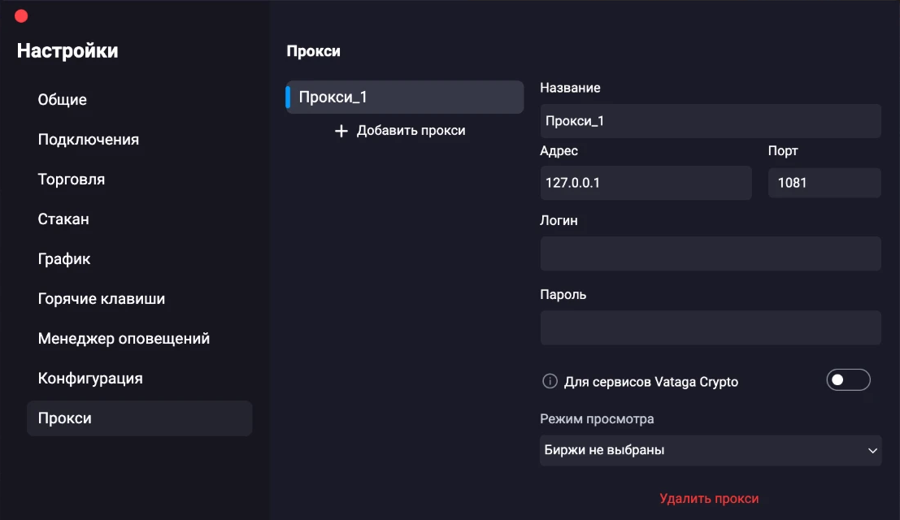
127.0.0.1, port 1081, login and password empty.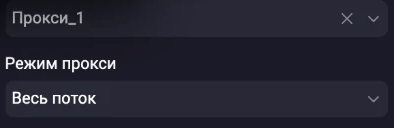
MetaScalp
- Settings → the "Proxy" tab → the "Add proxy server" section.
- Name —
PingNitro, IP address —127.0.0.1, port —1081, login and password empty → "Add". - In the exchange connection, choose
PingNitroin the "Proxy" drop-down and reconnect.
Any other terminal
Any program that lets you set a proxy for the exchange connection will do: look for "Proxy" in the connection settings.
Type — HTTP (if you have a choice, SOCKS5 works too), address 127.0.0.1, port 1081,
no login. If the proxy can be enabled separately for "market data" and "orders", enable it for both — the feed gets faster only when it goes
through the route.
Your own bot or script
# Python + ccxt
import ccxt
ex = ccxt.binanceusdm({"apiKey": "...", "secret": "..."})
ex.httpsProxy = "http://127.0.0.1:1081/"   # REST
ex.wsProxy    = "http://127.0.0.1:1081/"   # WebSocket (ccxt.pro)

# curl - check the route
curl -x http://127.0.0.1:1081 https://fapi.binance.com/fapi/v1/time
The PingNitro client accepts HTTP, SOCKS5 and SOCKS4 on a single port, 1081.
How to check that it works
- The PingNitro icon near the clock is green; the menu says "Route is working · Binance … ms" (with a "Check now" button). If there is no
icon, run
check.cmdfrom the client folder; on a Mac, launch PingNitro again: it checks the route and shows a status window. - Run the test on our site before and after — the table shows the feed latency for your connection.
- In the terminal, look at the ping / feed latency in the connection panel. In our measurements the Binance Futures feed took 69–78 ms via the route instead of 144–145 ms direct (30 Sep and 7 Oct 2026); in your city the numbers will differ — see the measurements by city.
If it doesn't work
The terminal won't connect to the exchange after I set the proxy
- Check that PingNitro is running (the icon near the clock; it may be hidden under the ^ arrow) — without it the proxy 127.0.0.1:1081 does not work.
- Icon menu → "Check now". If it is red, tell us in the bot what you see.
- Check the proxy type: in CScalp and Tiger.com it is HTTP. The port is 1081 (not 1080).
Other network programs are running (tunnels, proxies in "all traffic" mode) — latency got worse
A program that routes everything through itself in "all traffic" (TUN) mode also captures our client's traffic, so the path to the exchange gets longer.
Add sslocal.exe to that program's exclusions (the exclusions / split tunneling section, by process) or turn it off while you trade.
Our client does not touch the rest of your internet.
Microsoft Defender or another antivirus removed sslocal.exe
It is the official open-source shadowsocks-rust client (GitHub). Add the client folder to your antivirus exclusions and download the archive again in your account or in the bot ("Send the client again").
Do I need to change anything in my exchange API keys?
Usually not. If your key is restricted to specific IP addresses, add all our exit addresses in Tokyo: 57.182.161.238, 95.85.94.206 and 43.165.167.202 — the route picks the best of them itself; otherwise the exchange will reject orders sent through the route.
Bybit / BingX are not sped up
Bybit and BingX servers are in Singapore — via Tokyo the path to them is longer than direct, so the PingNitro client sends them directly, outside the route, and the latency is the same as without a proxy. If you downloaded the client before 6 Oct 2026, download it again in the bot.
How to switch it off
Remove the proxy in your terminal's connection settings and close the client window — everything goes direct again, as before.